TwoWork CheckPoint
Time Registration Made Even Easier!
TwoWork CheckPoint is our tablet-based solution for central time registration. Set up a tablet in a common area and let employees check in and out with just a few taps!
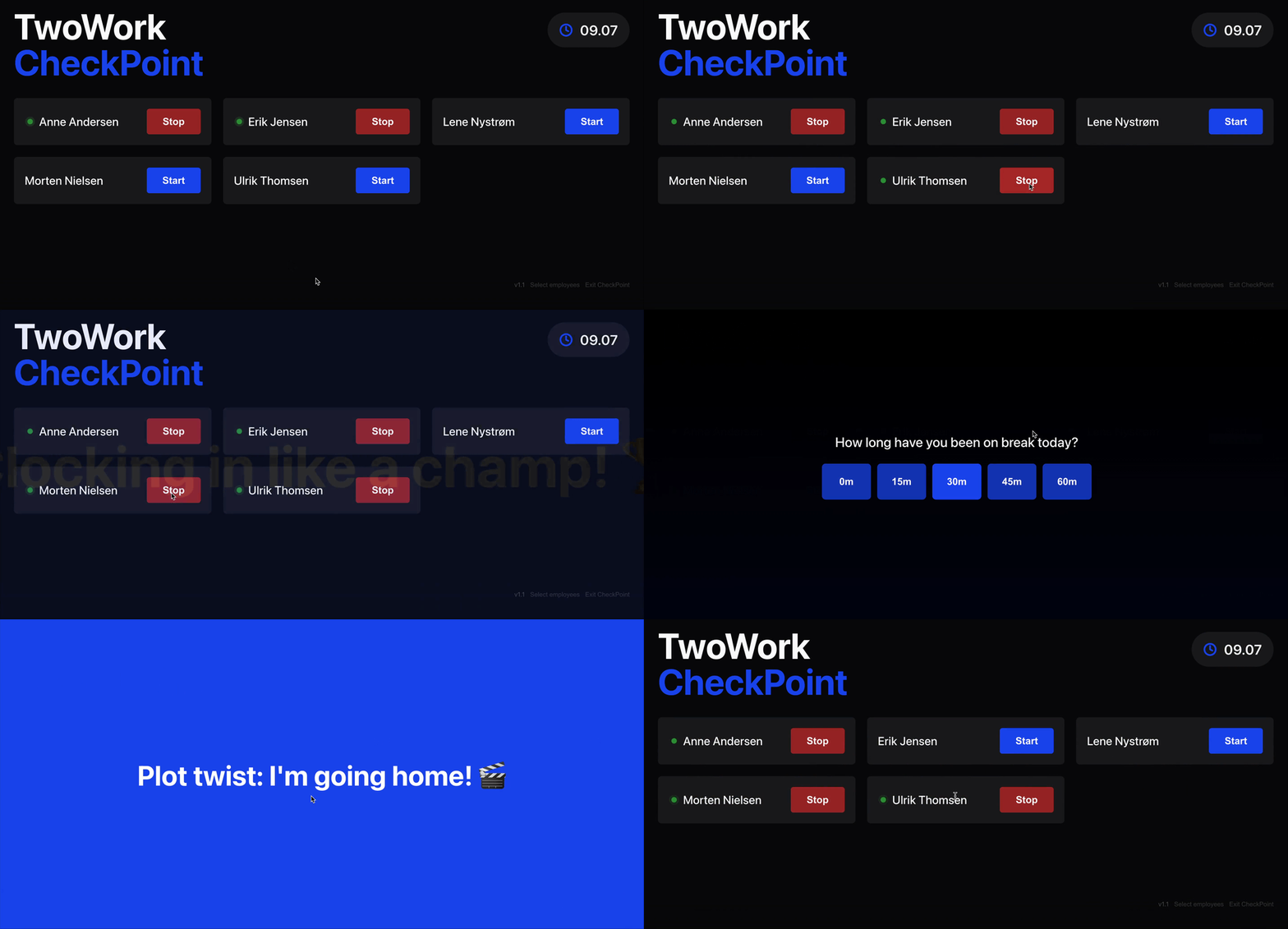
How It Works
- Employees find their name in the list
- They tap "Start" or "Stop" next to their name
- That's it! All time entries go directly into your TwoWork account
CheckPoint and webapp are always in sync
CheckPoint and an employee's own TwoWork account share the same time registration. If an employee starts their time on CheckPoint, it's also started on their phone - and vice versa. The two cannot be decoupled.
This also means an employee can start a shift on CheckPoint and stop it on their phone (or the other way around), without anything being lost.
Do I Need to Buy Expensive Hardware From TwoWork?
Nope! TwoWork CheckPoint works on any iPad supporting iPadOS 17 or newer (iPads from 2018 and onwards). You can find a list of supported devices here: https://support.apple.com/da-dk/guide/ipad/ipad213a25b2/17.0/ipados/17.0
We do not officially support Android tablets, but as long as you can log-in and run TwoWork CheckPoint you should be good.
Getting Started
- Login on the tablet you want to use.
- Go to the "Company" page in TwoWork
- Press "Enable CheckPoint"
- Log in again and you are ready to go!
Configuring Your CheckPoint
Once you've enabled CheckPoint, you can customize it to fit your needs. Tap the ⚙️ next to the clock at the top of the CheckPoint screen to open the settings. Everything is gathered in one place - name/location, employee selection, and the option to exit CheckPoint mode.
Name / Location
If you have multiple CheckPoints (for example, one in the warehouse and one in the kitchen), you can give each one a unique name. This is super helpful because:
- The location name is recorded with each time entry
- You'll see it in your export files
How it works:
- If an employee starts AND stops on a CheckPoint, the export will show "checkpoint" with your custom location name
- If they use the webapp on their phone instead, it will show "webapp" in the export
To set a name:
- Open settings via the ⚙️ next to the clock
- Enter a descriptive name in the Name / Location field (e.g., "Warehouse, Kitchen, Laneroad 86")
- Tap Save name change
Employees
Not all employees might use the CheckPoint - some might prefer using the webapp on their phone. To keep your CheckPoint screen clean and uncluttered, you can choose which employees appear:
- Open settings via the ⚙️ next to the clock
- Under Employees, use "Select all" / "Deselect all", or tick individual employees
- Close the settings - your selection is saved automatically
This way, only the employees who actually use the CheckPoint will take up space on the screen!
Exit CheckPoint
At the bottom of the settings you'll find the Exit CheckPoint button. Use this when you want to take the device out of CheckPoint mode. Note that employee selection and name/location will be reset when you exit.